
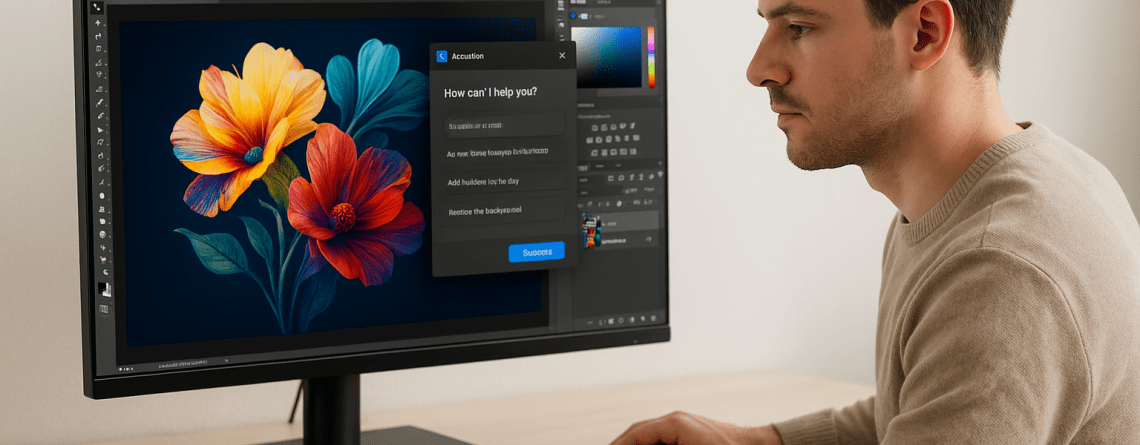
🎨 Introduction
Artificial intelligence is no longer a distant concept—it’s now built into the very tools we use every day as creatives. Adobe has embraced AI with features that help you work faster and smarter, without compromising your unique artistic voice. This tutorial shows how to use AI as a partner, not a replacement, in your creative process.
🧭 Quick Tutorial: Using AI in Adobe Creative Suite
1. Automate Repetitive Tasks
AI features, such as Generative Fill in Photoshop and Recolor Artwork in Illustrator, reduce manual work. Replace backgrounds, fill gaps, or test color palettes in seconds.
2. Enhance Selections & Masking
Use Adobe Sensei’s Select Subject and Auto Masking to create ultra-precise selections with minimal effort—perfect for photo editing and compositing.
3. Generate Visual Concepts Instantly
Adobe Firefly enables Text-to-Image generation directly inside Photoshop. Quickly visualize ideas, create mood boards, or explore concepts with just a few words.
4. Smart Video Editing
In Premiere Pro, AI tools like Auto Reframe, Scene Edit Detection, and AI Audio Cleanup save hours in post-production while maintaining quality.
5. Creative Support, Not Replacement
AI doesn’t replace your vision—it supports it. Think of it as a creative assistant that handles the repetitive so you can focus on originality and impact.
💡 Pro Tip
AI features are most powerful when combined with your style. Use them to enhance, not define, your work. Set creative boundaries and refine the output—it’s your touch that makes it original.




Leave a Reply