
Updated for Autodesk Fusion v.2605.0.97 – November 2025
Usability · Design · Manufacturing · Electronics
Autodesk Fusion 360 v.2605.0.97: Key New Features, Performance Improvements, and Practical Guide
The November 2025 Autodesk Fusion update (v.2605.0.97) focuses on three pillars: a smoother and faster daily
experience (usability and performance), richer data management and collaboration (BOM, hubs, groups, PLM),
and more powerful design and manufacturing tools such as asymmetric fillets, the new Bounding Solid, and a
redesigned Hole Template Editor that can save hours on the shop floor.
v.2605.0.97
Design & CAM
What’s new in Fusion 360 v.2605.0.97?
This major update delivers improvements across the board: UI and navigation refinements, performance
boosts in sketching and timeline playback, more informative BOMs, better control of references and hub
members, as well as new design tools like Asymmetric Fillet and Bounding Solid that directly affect how
you model and prepare parts for manufacturing.
| Area | Key updates | Practical impact |
|---|---|---|
| Usability & UI | “Match OS” theme by default, canvas exposure control, View Cube and selection filter improvements. | Visual experience that matches your OS, faster navigation, and more precise body/component selection. |
| Performance | Smoother sketch editing, up to ~60% faster timeline playback, better handling of heavy drawings. | Complex models respond quicker when editing, playing back the timeline or working with large assemblies. |
| Data management | Physical properties in BOM, “Trash While Referenced”, improved groups, hubs and Home Tab experience. | More accurate BOMs, clearer view of mass/volume and a cleaner administration of teams and references. |
| Design | Asymmetric Fillet, new Center Constraint, improved AutoConstrain, Bounding Solid, sheet metal and decal tweaks. | Cleaner, more realistic parts and assemblies, and faster setup of manufacturing stock and envelopes. |
| Electronics | Better 2D/3D PCB sync, improved electronics BOM experience, reference renumbering, library search. | Fewer surprises when pushing changes between schematic and 3D PCB, and more consistent documentation. |
| Manufacturing | New Hole Template Editor, better “Machine Over Holes/Pockets” behavior, multi-axis drilling and additive enhancements. | Faster CNC programming, reusable drilling templates and clearer toolpaths for complex parts. |
(v.2605.1.18) with additional stability fixes. Whenever possible, it is worth updating to the latest build
to benefit from these fixes.
A more consistent interface and a faster Fusion
This version focuses on making Fusion feel more integrated with your OS: automatic theme matching, a new
exposure control for the modeling canvas, and a smarter View Cube that orbits around the geometry you
actually care about, plus sketch and timeline performance improvements.
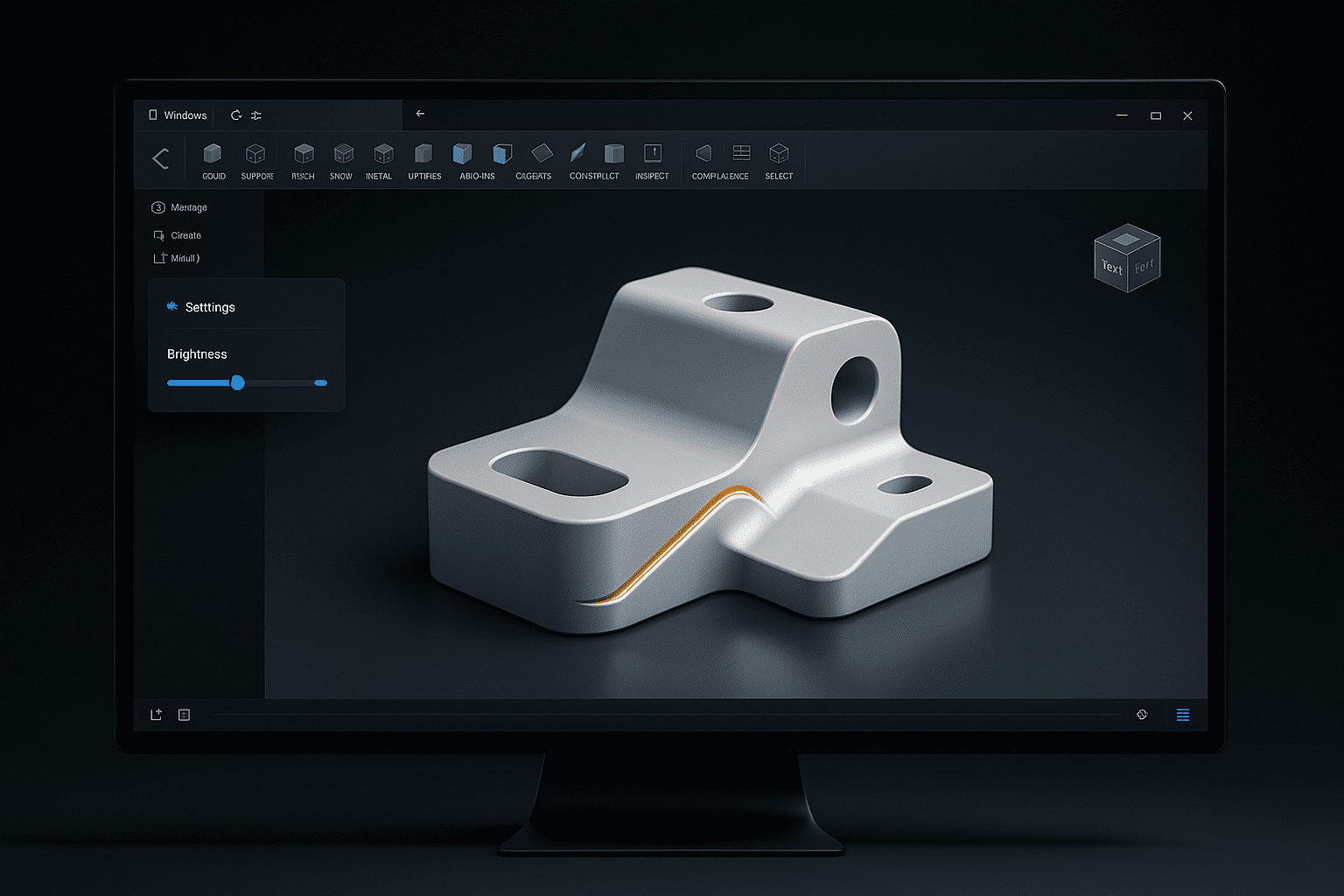
“Match OS” by default and canvas exposure control
Fusion now uses the “Match OS” theme by default. If your OS is in dark mode, Fusion will
follow automatically, without having to touch preferences. A new exposure control for the canvas
lets you quickly adjust the overall brightness of the modeling environment.
- Light/dark mode synchronized with your operating system.
- Canvas exposure slider to adapt brightness to your display and room.
- Less visual fatigue during long modeling sessions.
View Cube, selection filters and Release Notes access
The View Cube now orbits around the selected geometry, helping you keep the area of interest in the
frame. Selection filters were refined so you can more clearly target bodies or components, and a new
shortcut to the Release Notes is now available directly from the Help menu.
- View Cube keeps selected geometry in focus while changing views.
- Selection by size with the option to filter by bodies or components.
- Direct link to the version notes from the Help menu.
Performance boost in sketches, timeline and heavy drawings
Under the hood, this release brings significant performance improvements: sketches that used to stall when
adding lines to existing chains now behave more smoothly, timeline playback can be up to ~60% faster on
certain models, and opening, saving and updating complex drawings has been optimized.
- Sketch: improved behavior when adding lines to existing chains, with fewer freezes.
- Timeline: up to ~60% faster playback on complex designs (depending on dataset).
- Drawings: lighter files and more responsive mass calculations and view updates.
Smarter BOMs, better hubs and a new PLM Template Library
Autodesk is reinforcing Fusion as a connected platform: more useful information in BOMs, clearer feedback
when deleting referenced designs, an improved experience for managing users and groups, and a Template
Library in Fusion Manage that accelerates PLM process configuration.
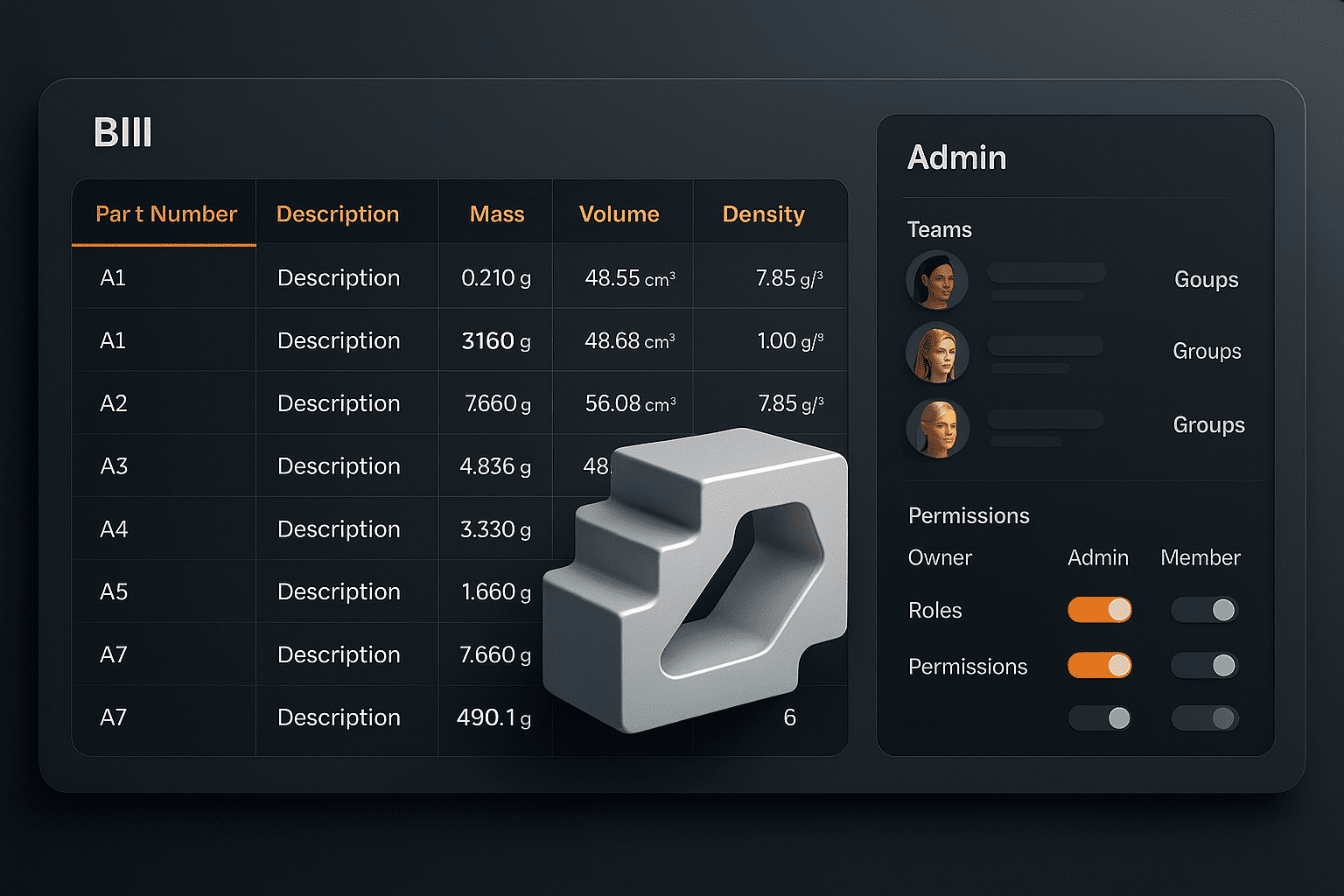
Physical properties in BOM and “Trash While Referenced”
You can now expose physical property columns (mass, volume, area, dimensions, density) in the Bill of
Materials, with automatic roll-ups for entire assemblies. At the same time, when you send referenced
designs to the Trash, Fusion now shows a clear dialog listing dependencies and letting you decide how
to proceed.
- Physical property columns in BOM controlled at hub level.
- Values consistent with the precision you see in the modeling canvas.
- Informative dialog when deleting referenced designs, in both desktop and web.
Simplified admin: groups, members and hub merges
Member and group administration in Fusion hubs has been streamlined: invite users, assign roles, see
group membership and manage teams from a single place. On top of that, hubs can be merged (for
Collaborative Editing environments), transferring data and users into a consolidated hub.
- Cleaner member and group management views.
- New “Merge Hubs” capability for consolidating fragmented environments.
- Closer integration with Fusion Manage for PLM workflows.
Template Library in Fusion Manage: PLM out of the box
On the PLM side, the new Template Library provides ready-made workflows, best practices and reusable
templates for processes such as portfolio management, new product introduction, quality, and supplier
collaboration. Every template is fully customizable, allowing you to start from a proven baseline and
adapt it to your company’s context.
Asymmetric Fillets, new Center Constraint and smarter AutoConstrain
This release gives you more control with fewer steps: asymmetric fillets, a new centering constraint,
a smarter AutoConstrain and the new Bounding Solid for creating stocks and envelopes in seconds.
Asymmetric Fillet: two radii on the same edge
The new Asymmetric Fillet type lets you define two different radii on a single edge (or edge set), both
in standard Fillet and Rule Fillet. It’s ideal for transitions where one face needs to be blended more
than the other, or when you want to approximate real manufacturing radii.
- Two independent radius values for each selected edge set.
- Compatible with downstream features such as Draft, Press Pull and Edit In Place.
- API support to automate asymmetric fillets via scripts and add-ins.
New Center Constraint for assemblies
The new Center constraint lets you center a component between two faces of another component,
without creating extra construction geometry. This simplifies assemblies where parts must sit exactly
halfway between two surfaces.
Improved AutoConstrain, Bounding Solid and clearer in-context editing
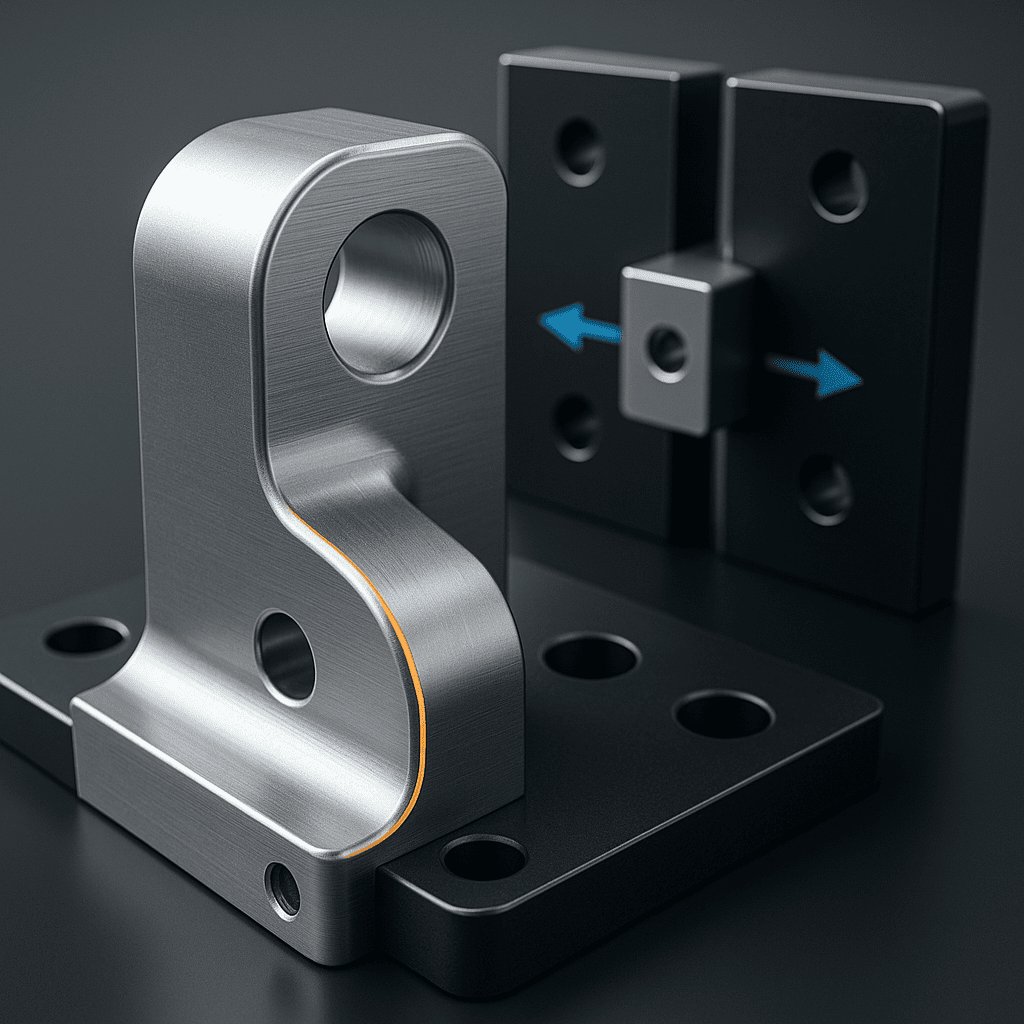
AutoConstrain not only applies constraints automatically; it can now detect and fix subtle geometric
imperfections (small gaps, slightly misaligned lines, nearly-tangent arcs). Meanwhile, the new Bounding
Solid creates a solid envelope (box, cylinder or tube) around your bodies that can be used as manufacturing
stock or to design housings and soft jaws.
- AutoConstrain with sketch repair and fine tolerance controls per constraint type.
- Bounding Solid for rectangular or cylindrical stock, ready for CAM or envelope design.
- Better visibility during Edit In Place with opacity, visual style and color override controls.
How to apply an Asymmetric Fillet in Fusion 360 (step by step)
- Open your model in the Design workspace and make sure you are in Solid > Modify.
- Launch the Fillet command and select the edge (or edges) where you want to apply the fillet.
- In the dialog, change the radius type to Asymmetric. You will now see two radius input fields.
- Set the first radius (for example, 3 mm) for the primary face and the second radius (for example, 8 mm)
for the secondary face. Use the flip/invert option if you need to swap which face gets which radius. - Preview the result and tweak each radius independently until you get the transition you need. Then confirm
the command. - If you change your mind later, you can edit the Fillet feature, switch back to a symmetric radius or
update the asymmetric values.
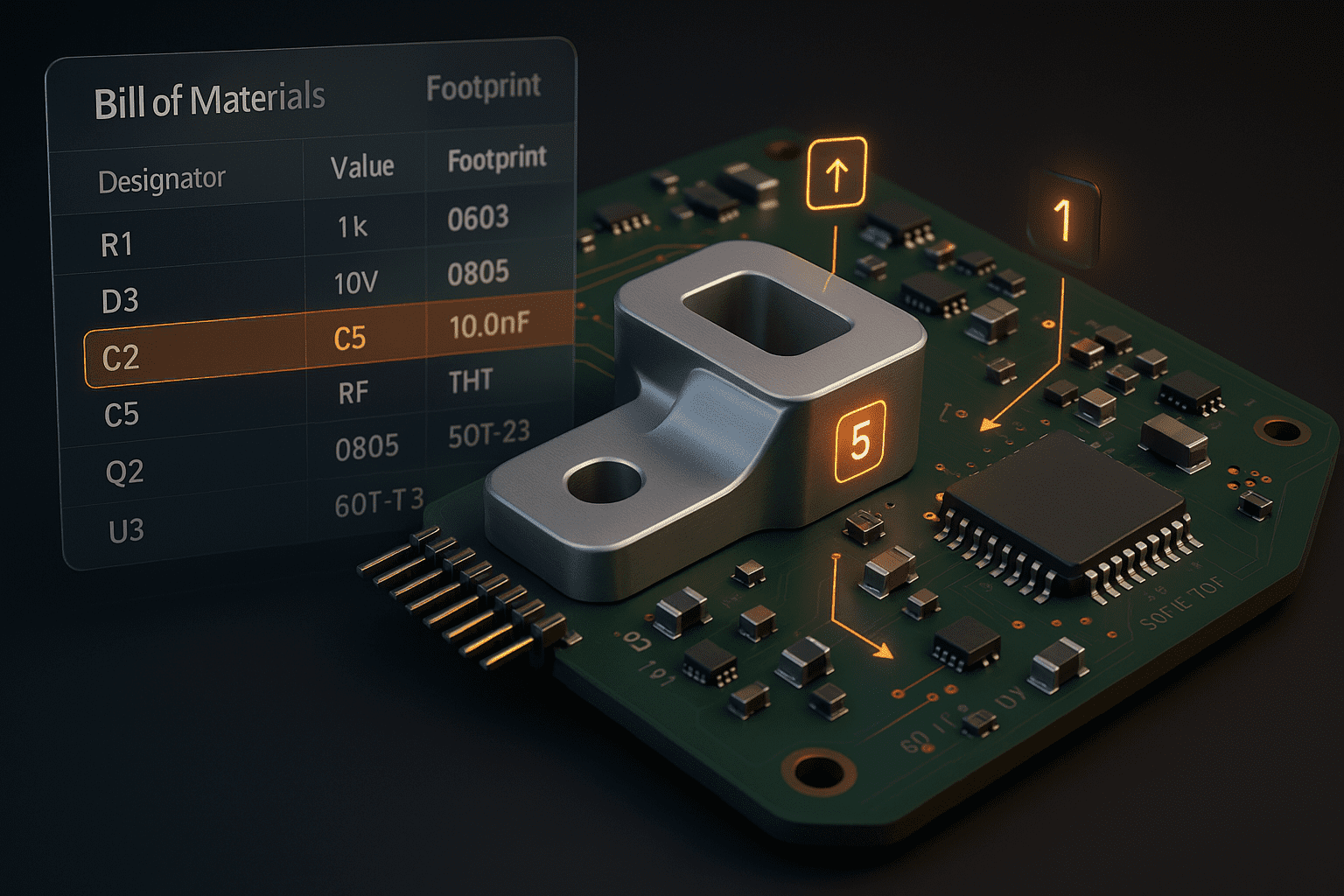
Better 2D/3D PCB sync and a more useful electronics BOM
If you design PCBs in Fusion, this release improves how changes are synchronized between 2D schematic and
3D PCB, introduces a richer BOM experience, more flexible reference renumbering, and tools for locating and
recovering missing libraries across your hubs.
More robust 2D & 3D PCB updates
Updates between schematic and 3D PCB are now more predictable and less error-prone, which directly
impacts documentation quality and consistency between the electrical design and mechanical model.
New electronics BOM experience and designator renumbering
The electronics BOM gains new capabilities, and you can now renumber designators in a way that stays
consistent between schematic and 2D PCB. Fusion also makes it easier to search for libraries by
component name and scan your hub for missing library references.
New Hole Template Editor and drilling/additive improvements
The November 2025 update brings meaningful enhancements for manufacturing: a renewed Hole Template Editor,
refined “Machine Over Holes/Pockets” behavior, better clearance and path visualization options, multi-axis
drilling operations (in the Manufacturing Extension), and several improvements for additive workflows.
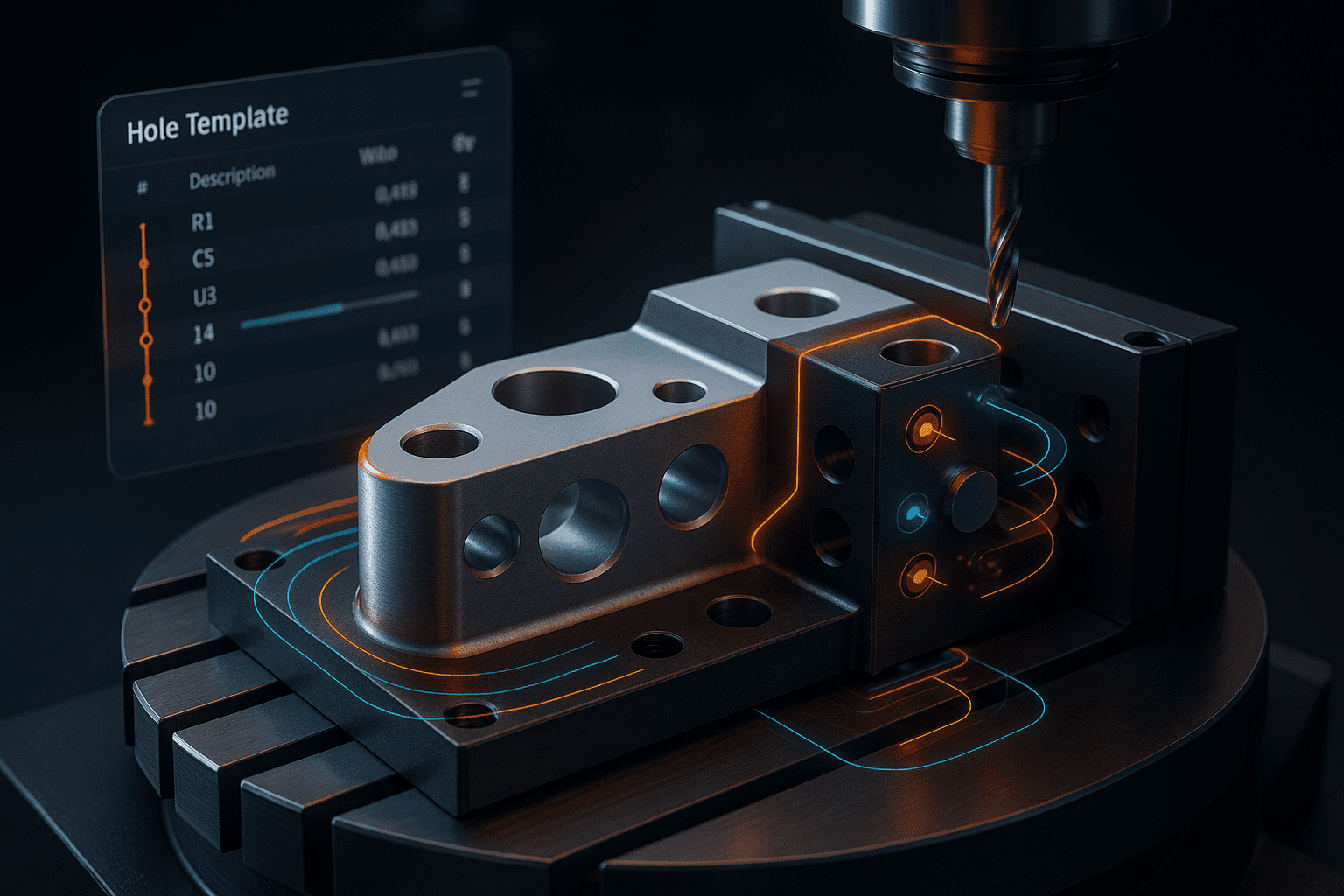
New Hole Template Editor: smarter drilling templates
The Hole Template Editor lets you define reusable drilling templates with diameters, depths, tools and
strategies preconfigured. This is especially useful for production parts where you repeatedly machine
the same families of holes.
- Centralized definition of drilling templates per family of parts.
- Fast application of templates to new manufacturing setups.
- Fewer manual errors and higher consistency between jobs.
Machine Over Holes/Pockets and multi-axis drilling
“Machine Over Holes/Pockets” behavior is refined to avoid unwanted moves over delicate areas, and new
clearance geometry and visualization options help you better understand toolpaths. In the Manufacturing
Extension, new multi-axis drilling strategies make it easier to program complex 5-axis parts.
Turning and additive manufacturing refinements
Turning strategies receive multiple tweaks for smoother and more controlled toolpaths, while additive
manufacturing gains better Face Groups support on meshes, allowing import and export of 3MF files with
preserved face groups. This makes it easier to prepare parts with different finishes and textures in
advanced additive workflows.
Should you update to Fusion v.2605.0.97?
If you work on complex projects in mechanical design, assemblies, manufacturing or electronics, the short
answer is yes. The combination of performance improvements, new design tools like Asymmetric Fillet and
Bounding Solid, and stronger data and manufacturing capabilities makes this version a meaningful step toward
more robust, faster and collaborative workflows.
Our recommendation from MGraficos:
- Update to the latest available build (v.2605.0.97 or newer, including minor updates).
- Test the update on a controlled project first to validate scripts, add-ins and templates.
- Leverage the new AutoConstrain and Asymmetric Fillet features in upcoming designs to reduce cleanup time.
- If you use CAM in production, invest a few hours building solid templates in the new Hole Template Editor:
the time will quickly pay for itself.




Leave a Reply